How to Privately Proofread Mac Documents
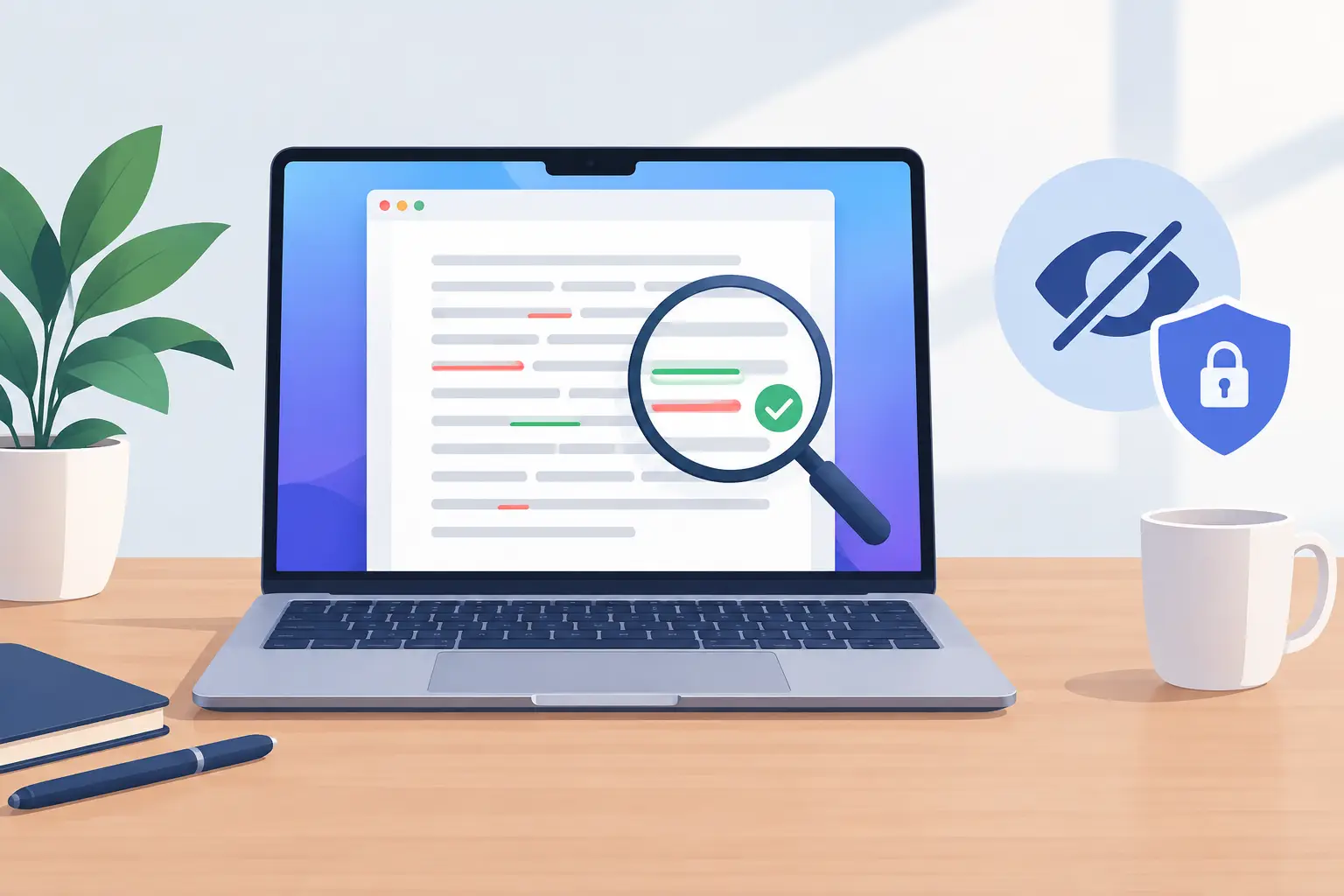
A contract draft, investor update, dissertation chapter, or client email can contain more than bad commas. When you privately proofread Mac documents, the real question is not only whether the suggested edit is correct. It is where the text goes, what is retained, and whether you can verify the answer without giving up control of the original.
For many Mac users, proofreading has quietly become a data-handling decision. A writing tool may be convenient, but convenience is not a blank check to send unreleased work, personal correspondence, or internal notes through an account-based service. Private by default means treating the draft as yours from selection to final paste.
What private proofreading should mean
Private proofreading is not a vague promise on a landing page. It is a workflow with clear boundaries.
The text should be processed on your Mac rather than routinely transmitted to a remote service. You should not need to create an account before checking a paragraph. The tool should make its output visible for review instead of silently changing a document behind your back. And you should be able to understand what you are copying, saving, and sharing at each step.
That last point matters. Proofreading is judgment work. A grammar suggestion can be mechanically valid yet wrong for a legal clause, a technical term, a quote, or your own voice. Privacy and control tend to work well together because both keep the writer in the decision loop.
Cloud services are not automatically unsuitable. A team may have contractual approval, a reviewed data-processing agreement, and document classifications that allow a specific service. But that is a different situation from casually pasting a customer record or unpublished manuscript into a tool because it is open in another tab. The right choice depends on the material and the rules around it.
How to privately proofread Mac documents
Start by separating the document from the passage that needs attention. Instead of handing over an entire file, select the sentence, paragraph, or section you want to inspect. This reduces exposure even in a local workflow and makes the review more focused. It also prevents a proofreading pass from becoming an uncontrolled rewrite of a long document.
macOS gives you a built-in way to do exactly that. Select a passage in Pages, Word, Mail, Xcode, or any app that supports the standard text system, then open the Services menu (from the app menu, or by right-clicking the selection) and choose a proofreading service. The selection travels; the rest of the file does not. A Service only ever receives the text you highlighted, which is a meaningfully smaller surface than an app that watches your typing or reads open windows.
Next, use a local-first utility that states plainly how it handles text. Look for direct language about on-device processing and account requirements. If a product cannot explain where selected text is processed, whether it is stored, or what permissions it needs, treat that uncertainty as part of its cost.
Then review the proposed copy in a separate panel or window before changing the source document. This is slower than blind automation by a few seconds, and that is often a useful trade-off. You can compare the original with the corrected version, preserve deliberate wording, and reject changes that flatten a technical or personal tone.
Finally, copy only the revision you accept back into the document yourself. That explicit handoff is a small but meaningful control point. It confirms what is entering the file and avoids the unpleasant surprise of discovering that a tool altered text elsewhere in the document.
What this looks like in practice
uChecker is built around that sequence. It runs on macOS 14 and later as a menu-bar app with no Dock icon: select text anywhere and choose Services → Check with uChecker, or open its panel with a global hotkey you record yourself, paste, and check. The corrected version appears in the panel next to a list of what changed, with a copy button. Nothing is written back to your document; you paste the parts you accept.
Two details are worth stating precisely, because they are the ones that decide whether a tool is genuinely local.
Where the text is processed. By default the app makes no network requests at all. On macOS 26 and later on Apple Silicon it uses Apple's on-device foundation models; everywhere else (Intel Macs, older macOS, or Apple Intelligence turned off) it falls back to the system spell checker, which is also on-device. There is a third option, and it is off unless you turn it on: you can point the app at your own OpenAI-compatible or Anthropic endpoint with your own API key. That path does send the text you check, to the service you chose, at your direction. The developer never receives it, and the app ships a privacy manifest declaring no data collection.
What it asks for. No account, no sign-in, no broad accessibility permission to read your screen or documents. Working from a selection is what makes that possible: there is nothing to monitor continuously.
The honest limitation: the two on-device engines cover a limited set of languages: English, French, German, Italian, Spanish, Portuguese, Japanese, Korean, and Chinese. Russian and most other languages are not among them on-device. If you write in one of those, a fully local pass is not available and you are back to choosing a cloud path deliberately, which is exactly the decision this article is about.
Check the privacy details that affect real work
"On-device" is a useful starting point, not the end of the review. A privacy-respecting proofreading setup deserves the same scrutiny you would give a password manager or notes app. Four things are worth checking before a deadline forces the question.
What the app receives. A utility that works from selected text has a smaller working surface than one that asks for ongoing access to every document or broad accessibility permissions. Some permissions may be reasonable for a feature, but they should be understandable and proportionate. On macOS, a good rule of thumb: if a proofreading tool asks for Accessibility or Full Disk Access, ask what feature requires it.
Whether an account is mandatory. Accounts can be useful for syncing preferences or managing purchases, but they also create an identity layer around your writing activity. If your goal is a focused local proofreading tool, requiring sign-in should have a clear reason.
Retention and diagnostics. Local processing does not necessarily answer every question about logs, crash reports, or optional analytics. Read the app's privacy information and preference screens. A good policy is readable enough to tell you what happens in ordinary use, not just broad enough to satisfy a legal checkbox.
The clipboard. Copying corrected text is a deliberate action, but your clipboard can be visible to other utilities, shared across devices through Universal Clipboard, or preserved indefinitely in a clipboard manager. For highly sensitive work, check whether Handoff is on in System Settings, use a clipboard history tool you trust, and clear temporary content when appropriate. The risk level is different for a blog draft than for personnel notes or confidential deal terms.
One more rule belongs here, because it is the mistake people actually make. The easiest privacy failure is not installing the wrong app. It is using the nearest available text box when you are rushed. Decide in advance: do not paste confidential material into a service unless you know where it is processed and your organization permits it. Keep a local option installed so the private choice is also the fast choice.
Be especially careful with text that includes names, contact details, financial information, health information, source code, security findings, customer conversations, and unreleased business plans. Even a seemingly ordinary sentence can reveal more context than intended when combined with other pasted sections.
Make proofreading a two-pass habit
Private tools protect the route your text takes. They do not replace editorial judgment. The most reliable workflow uses two short passes with different goals.
On the first pass, check mechanics: spelling, punctuation, agreement, repeated words, missing articles, and sentences that are hard to parse. Keep the scope tight. If a paragraph has several issues, revise it and run the selection again rather than sending a whole document through repeated broad passes.
On the second pass, read for meaning and voice. This is where a mechanically correct edit can quietly cost you something. A contract clause reading "the vendor shall provide 30 days notice" is smoothed to "the vendor should provide 30 days notice." The grammar is fine, and the obligation is gone. A runbook line, "Do not restart the service before the backup completes," comes back as "Avoid restarting the service before the backup completes," which reads better and instructs less. A proofreading pass will not flag either one, because neither is an error.
So ask a specific question of every accepted edit: did this change the claim, weaken a necessary instruction, introduce ambiguity, or remove language your reader needs? This matters most in product requirements, policy copy, technical documentation, academic work, and client communication. Correct grammar is not the same as correct intent.
Reading the passage aloud remains useful here. It catches rhythm problems and missing context that proofreading tools may not flag. For high-stakes documents, a human reviewer is still worth the time. A local utility can clean the surface quickly; subject expertise decides whether the sentence says the right thing.
Write the rule down before you need it
Teams do not need process theater, but they do need a clear answer to a practical question: which tools are approved for sensitive drafts, and what kind of text is allowed in each one? Two sentences in an onboarding doc are more useful than discovering a restriction after a document has already traveled elsewhere.
When reviewing a long document, work in small, meaningful selections rather than copying the entire file into multiple tools. The habit costs nothing once it is a habit, and it is the part of the workflow that survives a bad week.
Privacy is part of writing quality
A good proofreading setup should disappear into the work without making the writer surrender control. Local processing, no required account, selected-text review, and a manual copy-back step create a useful boundary around drafts that deserve care.
The payoff is not only a cleaner sentence. It is the ability to edit contracts, research, client work, and personal writing with a clearer understanding of where the words stay: on the Mac, under your review, and in the document only when you decide they belong there.